AI-assisted authoring · 2026-08-17 · Testing
A new Testing task adds synchronization prerequisites, seven commands, two images, validation-message guidance and compatibility outcomes for Apple dynamic configurations.
Counts describe source structure, including commands in substeps. More elements do not by themselves prove better usability.
Before · parent revision
This topic path did not exist in the parent revision. This example adds new coverage.
After · committed revision
Adding a Dynamic Configuration to an Apple Profile
Add the latest Apple configurations to an iOS/iPadOS or Shared iPad User profile from the Dynamic configurations category.
Before you begin
Dynamic configurations must be synchronized before they appear in the Add configuration dialog box. See Syncing Apple Dynamic Configurations.About this task
Dynamic configurations are available for iOS/iPadOS and Shared iPad User profiles, for both declarative and reactive profile types. For background information, see Dynamic Configurations for Apple Profiles.Procedure
- From the SOTI MobiControl web console main menu, select .
- Select Add Profile, choose Apple as the family with iOS / iPadOS or Shared iPad User as the type, and then select Declarative profile or Reactive profile.
To add a configuration to an existing profile instead, open the profile, start editing, and go to the Configurations tab.
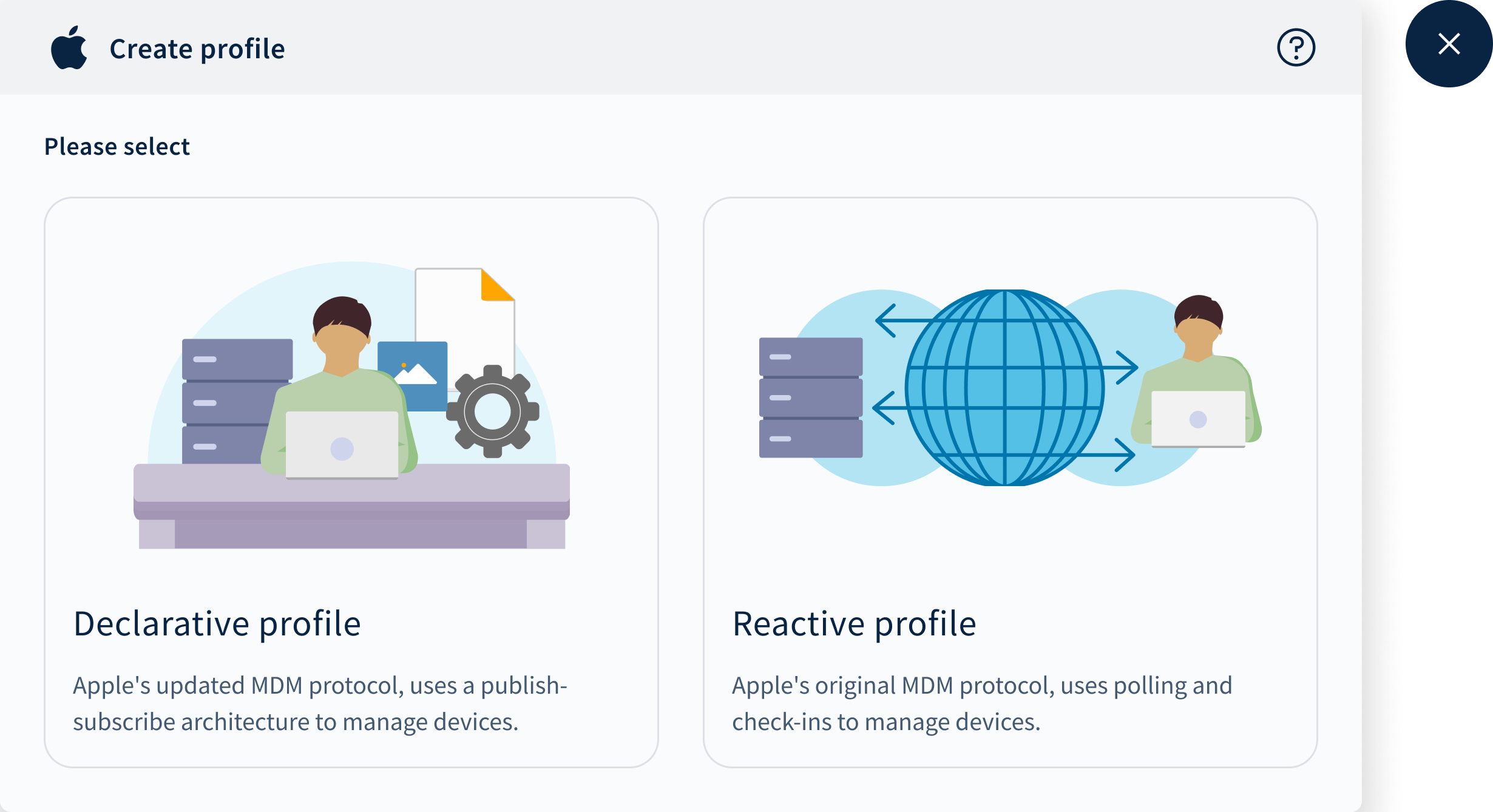
Create profile dialog box prompting you to select either a declarative profile or a reactive profile - Enter the profile details, and on the Configurations tab, select Add Configuration.
- In the Dynamic configurations category, select the configuration you want to add.
Use the search bar at the top of the dialog box to filter the available configurations. A Deprecated or Removed label beside a configuration means that Apple no longer updates or supports it on later OS versions.
- Fill out the configuration details form.
The form is generated from the published Apple schema. Required fields are marked with a red asterisk, and each field provides a tooltip and placeholder text describing the expected value. A Deprecated tag beside an individual field means that Apple has deprecated that setting.
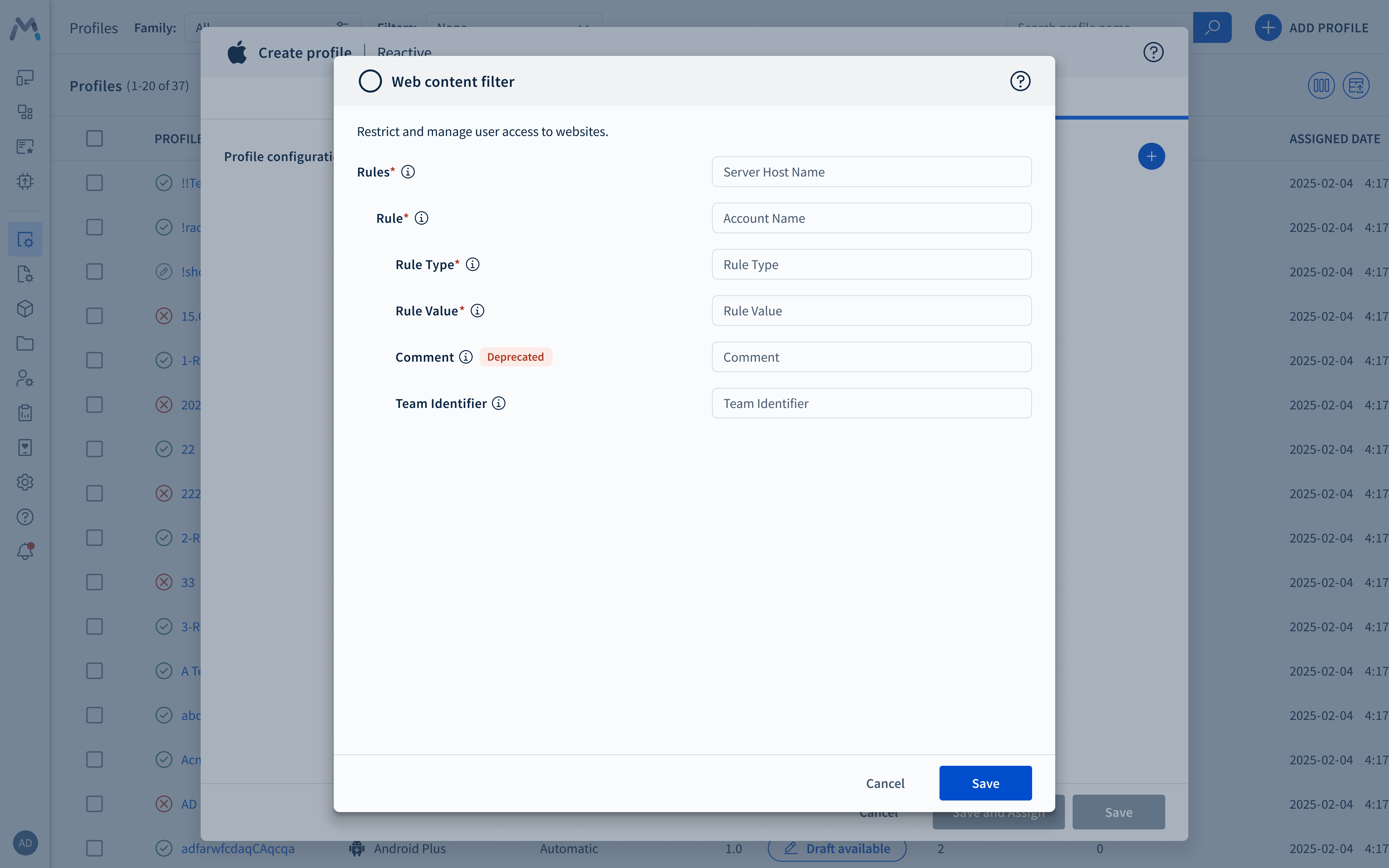
Dynamic configuration details form showing required fields marked with asterisks, tooltips, placeholder text, and a Deprecated tag on an individual field If you try to save the configuration with an empty required field, the field shows a This field is required message and an error banner at the top of the form reports the number of errors on the page.
- Select Save to add the configuration to the profile.If the payload type does not allow multiple instances, the corresponding static and dynamic configuration options become unavailable in the Add configuration dialog box after you add one of them. If the payload type allows multiple instances, you can add it to the same profile repeatedly.
- Save the profile, and assign it to your devices when you are ready.
Result
The configuration appears in the Dynamic configurations group on the profile's Configurations tab. If a configuration does not pass the compatibility checks for a device during deployment, it shows an Ignored status for that device instead of installing.
Highlighted changes
Green marks additions; red marks removals. Historical review comments are shown in amber. Colour is also supported by placement and strike-through.
Adding a Dynamic Configuration to an Apple Profile
Add the latest Apple configurations to an iOS/iPadOS or Shared iPad User profile from the Dynamic configurations category.
Before you begin
Dynamic configurations must be synchronized before they appear in the Add configuration dialog box. See Syncing Apple Dynamic Configurations.About this task
Dynamic configurations are available for iOS/iPadOS and Shared iPad User profiles, for both declarative and reactive profile types. For background information, see Dynamic Configurations for Apple Profiles.Procedure
- From the SOTI MobiControl web console main menu, select .
- Select Add Profile, choose Apple as the family with iOS / iPadOS or Shared iPad User as the type, and then select Declarative profile or Reactive profile.
To add a configuration to an existing profile instead, open the profile, start editing, and go to the Configurations tab.
Create profile dialog box prompting you to select either a declarative profile or a reactive profile - Enter the profile details, and on the Configurations tab, select Add Configuration.
- In the Dynamic configurations category, select the configuration you want to add.
Use the search bar at the top of the dialog box to filter the available configurations. A Deprecated or Removed label beside a configuration means that Apple no longer updates or supports it on later OS versions.
- Fill out the configuration details form.
The form is generated from the published Apple schema. Required fields are marked with a red asterisk, and each field provides a tooltip and placeholder text describing the expected value. A Deprecated tag beside an individual field means that Apple has deprecated that setting.
Dynamic configuration details form showing required fields marked with asterisks, tooltips, placeholder text, and a Deprecated tag on an individual field If you try to save the configuration with an empty required field, the field shows a This field is required message and an error banner at the top of the form reports the number of errors on the page.
- Select Save to add the configuration to the profile.If the payload type does not allow multiple instances, the corresponding static and dynamic configuration options become unavailable in the Add configuration dialog box after you add one of them. If the payload type allows multiple instances, you can add it to the same profile repeatedly.
- Save the profile, and assign it to your devices when you are ready.
Result
The configuration appears in the Dynamic configurations group on the profile's Configurations tab. If a configuration does not pass the compatibility checks for a device during deployment, it shows an Ignored status for that device instead of installing.
WYSIWYG-style approximation using the SOTI diff renderer. This is not an Oxygen/DITA-OT build or a live help page. Keyrefs, conrefs, conditional content and related-link navigation may require the original publishing environment. Screenshots are extracted from the matching revision.