Procedural writing · 2026-03-11 · trunk
A FileVault option table became a procedure with permissions, fifteen command elements including substeps, recovery-key branches, seven images and deployment follow-through.
Counts describe source structure, including commands in substeps. More elements do not by themselves prove better usability.
Before · parent revision
FileVault
Use the FileVault profile configuration to turn on FileVault disk encryption on devices and to select recovery key options when:
- Creating a Profile
- Editing a Profile
After · committed revision
Configure FileVault
Before you begin
You must have the following permissions:- View Profiles
- Manage Profile Setup
See General Permissions for details.
About this task
Use the FileVault macOS Device's reactive profile configuration to enable FileVault disk encryption on macOS devices and configure recovery key options through a device profile. Removing the FileVault configuration from a profile does not disable FileVault disk encryption on devices where it is already enabled.Procedure
- From the main menu, navigate to Profiles.
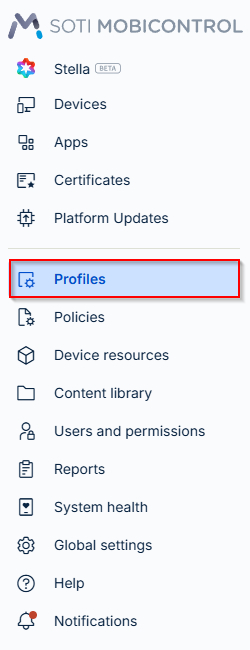
Profiles page in the MobiControl console. - Select (Add Profile).
- Select to create a new reactive macOS device profile.
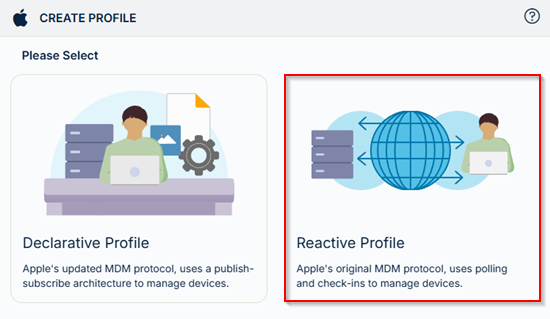
Selecting macOS Device Profile Reactive. - Navigate to the Configurations tab and add the FileVault configuration from the Security & Restrictions section.
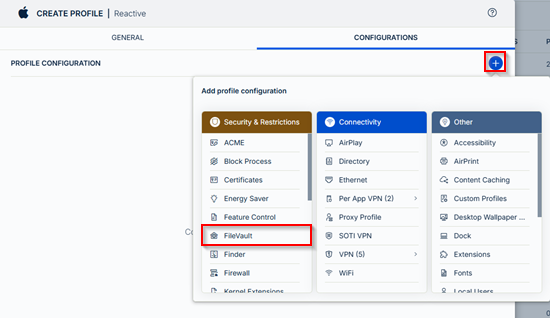
Add the FileVault configuration icon in the profile editor. - Enable Enforce FileVault to prevent users from disabling FileVault disk encryption.
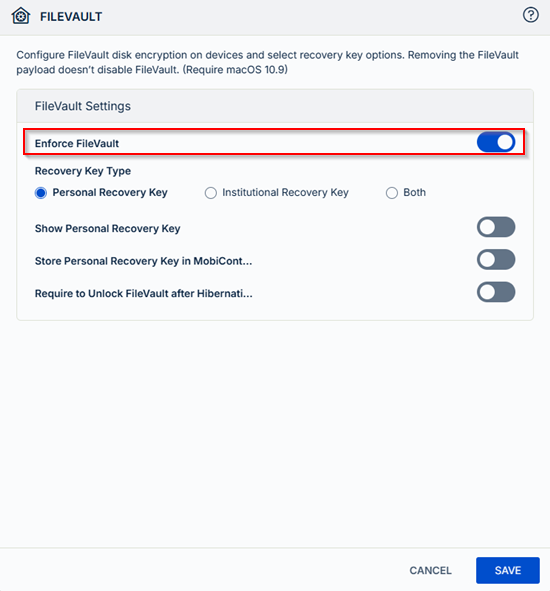
FileVault settings panel showing the Enforce FileVault toggle. - Select a Recovery Key Type.
- To configure an Institutional Recovery Key:
- Choose an Institutional Recovery Key Certificate from the certificates drop-down.
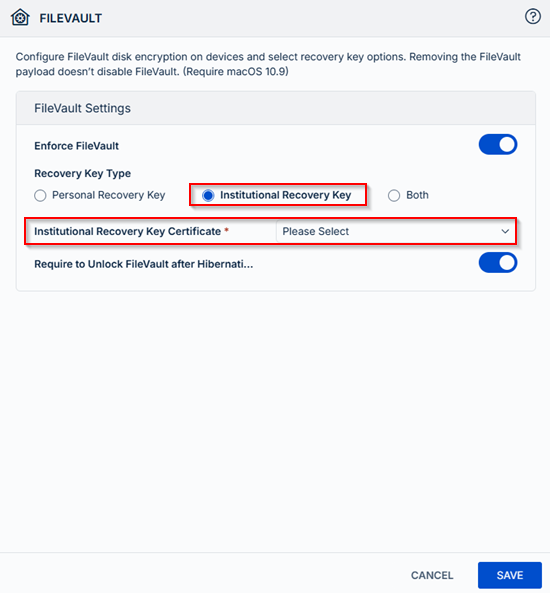
Selecting the Institutional Recovery Key Certificate.
- To configure Personal Recovery Key:
- Turn on Show Personal Recovery Key to allow the personal recovery key to be displayed to the device user.
- Turn on Store Personal Recovery Key in SOTI MobiControl to store the personal recovery key securely on the server.
- In the Encryption Certificate field, select Manage Certificate to choose the personal recovery key encryption certificate.
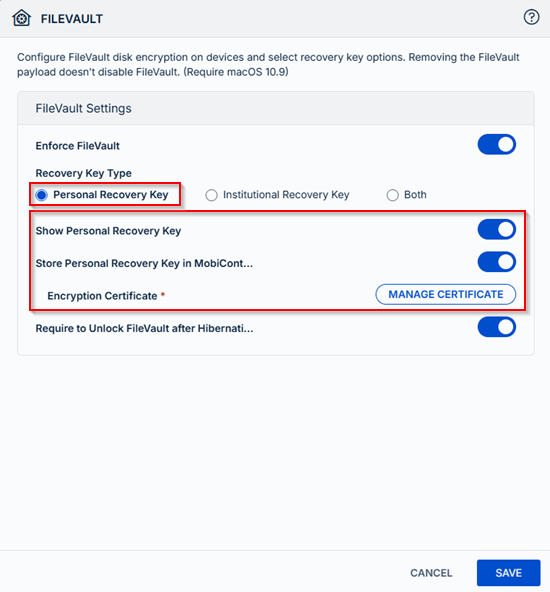
Configuring Personal Recovery Key settings. - Select Both to use an Institutional Recovery Key while also creating a Personal Recovery Key.
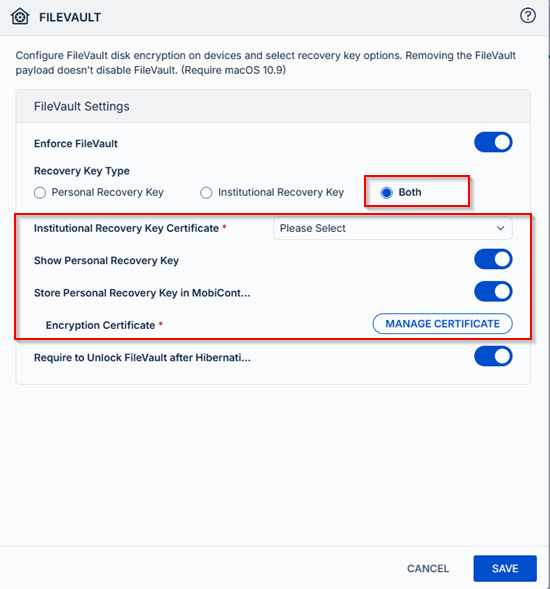
Selecting Both to use an Institutional Recovery Key while also creating a Personal Recovery Key. - Turn on Require to Unlock FileVault after Hibernation to require a password when unlocking the disk after hibernation.
- Select Save.
Result
The FileVault configuration is created and ready to be deployed to your target devices.What to do next
Assign the profile to your devices. See Assigning a Profile. After the profile is installed on the device, the user has to log out and log in back to enable the deployed configuration.Highlighted changes
Green marks additions; red marks removals. Historical review comments are shown in amber. Colour is also supported by placement and strike-through.
FileVault
Use the FileVault profile configuration to turn on FileVault disk encryption on devices and to select recovery key options when:
- Creating a Profile
- Editing a Profile
Configure FileVault
Before you begin
You must have the following permissions:- View Profiles
- Manage Profile Setup
See General Permissions for details.
About this task
Use the FileVault macOS Device's reactive profile configuration to enable FileVault disk encryption on macOS devices and configure recovery key options through a device profile. Removing the FileVault configuration from a profile does not disable FileVault disk encryption on devices where it is already enabled.Procedure
- From the main menu, navigate to Profiles.
Profiles page in the MobiControl console. - Select (Add Profile).
- Select to create a new reactive macOS device profile.
Selecting macOS Device Profile Reactive. - Navigate to the Configurations tab and add the FileVault configuration from the Security & Restrictions section.
Add the FileVault configuration icon in the profile editor. - Enable Enforce FileVault to prevent users from disabling FileVault disk encryption.
FileVault settings panel showing the Enforce FileVault toggle. - Select a Recovery Key Type.
- To configure an Institutional Recovery Key:
- Choose an Institutional Recovery Key Certificate from the certificates drop-down.
Selecting the Institutional Recovery Key Certificate.
- To configure Personal Recovery Key:
- Turn on Show Personal Recovery Key to allow the personal recovery key to be displayed to the device user.
- Turn on Store Personal Recovery Key in SOTI MobiControl to store the personal recovery key securely on the server.
- In the Encryption Certificate field, select Manage Certificate to choose the personal recovery key encryption certificate.
Configuring Personal Recovery Key settings. - Select Both to use an Institutional Recovery Key while also creating a Personal Recovery Key.
Selecting Both to use an Institutional Recovery Key while also creating a Personal Recovery Key. - Turn on Require to Unlock FileVault after Hibernation to require a password when unlocking the disk after hibernation.
- Select Save.
Result
The FileVault configuration is created and ready to be deployed to your target devices.What to do next
Assign the profile to your devices. See Assigning a Profile. After the profile is installed on the device, the user has to log out and log in back to enable the deployed configuration.WYSIWYG-style approximation using the SOTI diff renderer. This is not an Oxygen/DITA-OT build or a live help page. Keyrefs, conrefs, conditional content and related-link navigation may require the original publishing environment. Screenshots are extracted from the matching revision.