Procedural writing · 2025-07-30 · trunk
Four tables became a ten-command task with grouped Network, Security and Proxy sections, three images and one video object.
Counts describe source structure, including commands in substeps. More elements do not by themselves prove better usability.
Before · parent revision
Wi-Fi (Android Enterprise)
General: Network
General: Security
Proxy
After · committed revision
Configuring Wi-Fi (Android Enterprise)
About this task
Use this task to configure Wi-Fi settings for Android Enterprise devices using a device profile. You can define SSID, security protocols, and proxy settings to enable secure wireless connectivity. Upgrading Zebra devices with LifeGuard OTAProcedure
- From the main menu, navigate to the Profiles view in the SOTI MobiControl web console.
- Create or edit an Android Enterprise Work Managed profile. See Create a Profile andEditing a Profile.
- On the Configurations tab, select (Add) to add the WiFi configuration from the Connectivity list.
- Select (Add) in the WiFi SSID section to specify Wi-Fi setting details.
- Enter the Network Name (SSID) for the wireless network.
- Enable Set as Active Network to prioritize this network for automatic connection.
- Enable Disable MAC Randomization if you want devices to use their hardware MAC address.
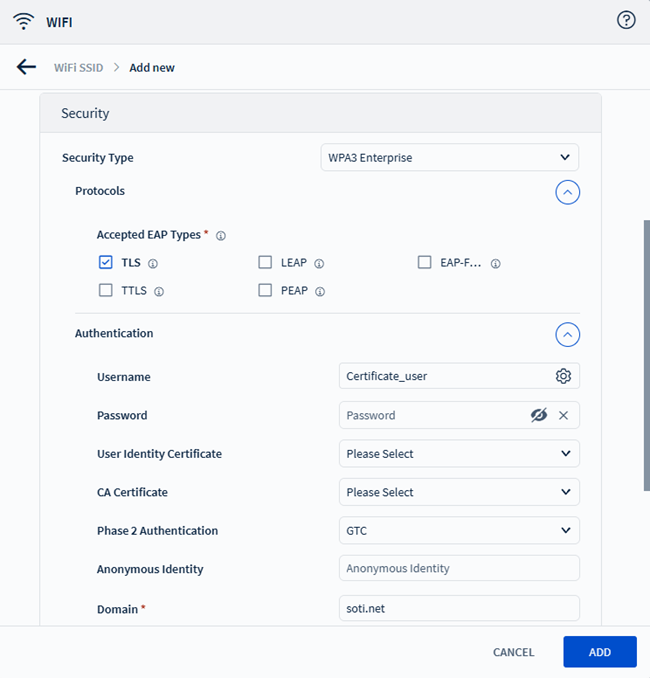
- Select a Security Type for the network.
- WEP
- WPA/ WPA 2
- WPA3 Personal
- 802.1x Enterprise
- WPA3 Enterprise
- WPA3 Enterprise-192 bit
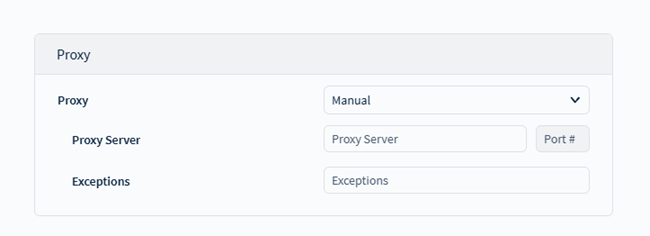
- Configure proxy settings as needed.
- None: Skip proxy settings for the Wi-Fi connection.
- Automatic: Enter a Proxy Auto-Configuration (PAC) file URL to automatically retrieve proxy settings from the specified location.
- Manual: Enter proxy settings manually. Specify the proxy server address and (optionally) the port number. In the Exceptions field, optionally list any host exceptions that should connect directly without using the proxy.
- Save and assign the profile to your target Android Enterprise devices.
Network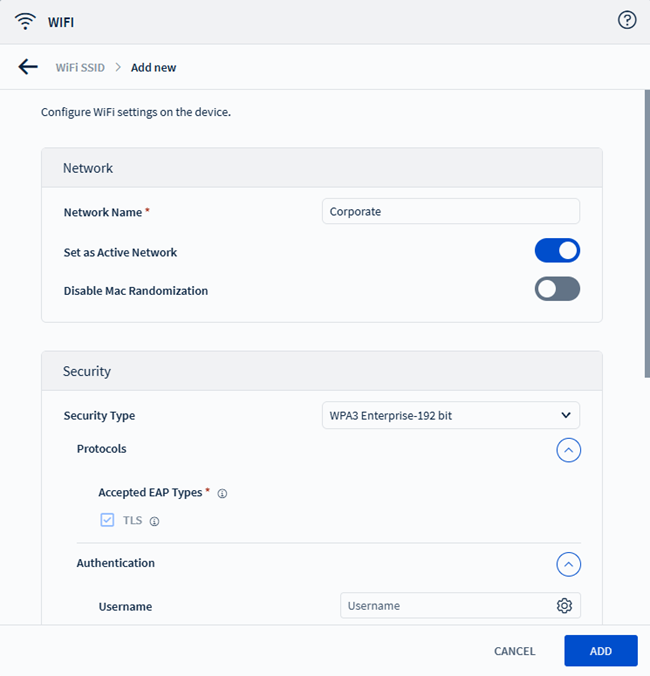
Security
Proxy
Result
Devices connect to the specified Wi-Fi network with the configured settings once the profile installs.Highlighted changes
Green marks additions; red marks removals. Historical review comments are shown in amber. Colour is also supported by placement and strike-through.
Wi-Fi (Android Enterprise)
General: Network
General: Security
Proxy
Configuring Wi-Fi (Android Enterprise)
About this task
Use this task to configure Wi-Fi settings for Android Enterprise devices using a device profile. You can define SSID, security protocols, and proxy settings to enable secure wireless connectivity. Upgrading Zebra devices with LifeGuard OTAProcedure
- From the main menu, navigate to the Profiles view in the SOTI MobiControl web console.
- Create or edit an Android Enterprise Work Managed profile. See Create a Profile andEditing a Profile.
- On the Configurations tab, select (Add) to add the WiFi configuration from the Connectivity list.
- Select (Add) in the WiFi SSID section to specify Wi-Fi setting details.
- Enter the Network Name (SSID) for the wireless network.
- Enable Set as Active Network to prioritize this network for automatic connection.
- Enable Disable MAC Randomization if you want devices to use their hardware MAC address.
- Select a Security Type for the network.
- WEP
- WPA/ WPA 2
- WPA3 Personal
- 802.1x Enterprise
- WPA3 Enterprise
- WPA3 Enterprise-192 bit
- Configure proxy settings as needed.
- None: Skip proxy settings for the Wi-Fi connection.
- Automatic: Enter a Proxy Auto-Configuration (PAC) file URL to automatically retrieve proxy settings from the specified location.
- Manual: Enter proxy settings manually. Specify the proxy server address and (optionally) the port number. In the Exceptions field, optionally list any host exceptions that should connect directly without using the proxy.
- Save and assign the profile to your target Android Enterprise devices.
Network
Security
Proxy
Result
Devices connect to the specified Wi-Fi network with the configured settings once the profile installs.WYSIWYG-style approximation using the SOTI diff renderer. This is not an Oxygen/DITA-OT build or a live help page. Keyrefs, conrefs, conditional content and related-link navigation may require the original publishing environment. Screenshots are extracted from the matching revision.